 outline
Linear
Connect your Linear workspace to enable rich, realtime, issue previews that stay up to date inside documents.

















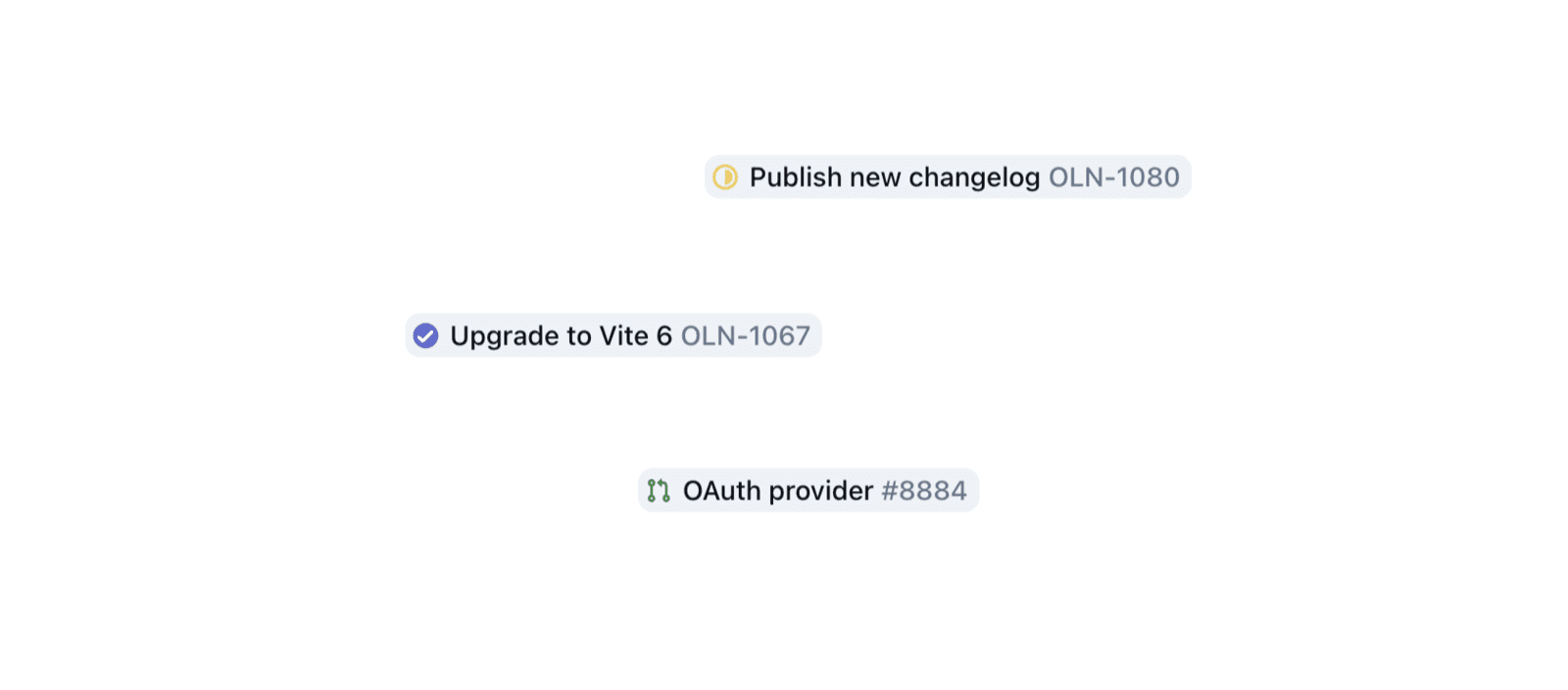
The Linear integration allows you to preview live issue and project details when pasting Linear links into Outline documents. You can see the current status, timestamp, a preview of the description, and the labels associated with an issue.
Setup
To setup the integration navigate to Settings → Integrations → Linear. You must have an admin role to be able to see this screen. Click the "Connect" button and authenticate with your Linear account – you can also choose at this time whether to allow previewing specific teams or all teams in your Linear workspace.
If you have more than one Linear workspace it can be connected in the same way by navigating to the settings page and clicking the "Connect" button that is now in the header.
Note: Linear is linked once for the entire Outline workspace, other team members will be able to see issue details from teams that are linked in this way.
Usage
Once the integration is connected, paste a linear.app link into an Outline document and you will see the option to "mention" the issue to display a preview with detailed information embedded in the document. You can also hover to see more details.
Mentions stay automatically up-to-date as the issue changes in Linear.